

🚀 Explore Wally Toolkit
🏠 Wally Home
WALLY LIVE CONVERTER
Inches ↔ Pixels
Real-time conversion · Custom PPI · Quick reference table
PPI — Pixels per Inch
PPI
⇄
↓
⎘COPY RESULT
0
×
96
=
0 px
📐 Quick Reference Table
SHOW / HIDE▾
INCHES
PPI
PIXELS
inch ↔ pixel converter · real-time · no ads
✓ COPIED!
Quick, reliable inch-to-pixel and pixel-to-inch conversion for designers, developers, and print professionals. Get accurate dimensions and flawless output across every digital and print project — no clicks, no delays, just live results the moment you start typing.
What Is an Inches to Pixels Converter?
Working with an inches to pixels converter has honestly been a game-changer across my graphic design and web design projects. Once you get the hang of it, going back to manual calculation feels unthinkable.
Here is the thing most beginners miss — when you need to convert inches to pixels (or pixels back to inches), the answer is never one fixed number. It always depends on a single critical variable: your PPI (pixels per inch) or DPI (dots per inch) setting. A 6-inch canvas at 96 PPI produces 576 pixels. That same 6-inch canvas at 300 DPI becomes 1,800 pixels. Same physical size on paper, completely different pixel counts in your file.
This tool works as a complete pixels vs inches converter, a PPI-to-DPI calculator, and a full unit converter — all inside one clean, live interface. The moment you type a value, the output appears. No convert button. No page reload. Just instant results driven by accurate formula logic on every single keystroke.
The impact of device resolution cannot be overstated here. Different devices — your computer screen, computer monitor, tablet, or printer — display and reproduce the same image size completely differently depending on their screen resolution and pixel density. The measurement unit you choose, whether working with CSS units for digital design or standard physical units for print quality, directly determines your image dimensions and pixel information across everything from online platforms and social media to cloud storage systems.
I have used this converter countless times — figuring out how large an image needs to be in pixels for a 6×4 inch print at 300 PPI, setting canvas sizes in Figma, converting social media pixel specs back to physical inches for a client’s print job. The tool respects aspect ratio, screen width, image width, pixel count, and total number of pixels per inch — ensuring your digital imaging translates correctly to print size every single time.
Whether you are asking how many pixels is 1.5 inches at 300 DPI? or what is 820 pixels in inches at 96 PPI? — type it in and the answer is already there before you finish thinking about it.
⚡ Key Features — Built for Professionals, Loved by Everyone
🔄 Feature 1 — Live Automation: Results Appear As You Type
This is the feature that changes everything about how the tool feels to use. The moment you enter any value into the input field, the output box shows your result — live, instantly, without pressing a single key beyond the number itself. No Enter key. No Convert button. No waiting around.
Type your inch value and watch the pixel count appear in real time. Switch to pixels mode and your inch equivalent updates just as fast. The output is driven by the exact conversion formula on every keystroke, which means you can experiment with different values and compare results rapidly without any friction at all. For anyone who works with dimensions regularly, this one feature alone saves a noticeable amount of time across a working day.
↔️ Feature 2 — Instant Swap: Inches to Pixels and Pixels to Inches in One Click
Two clearly labelled buttons sit right at the top of the tool — Inches to Pixels on the left and Pixels to Inches on the right — with a swap icon sitting between them. One click and the entire interface flips direction. Your input value stays exactly where it is. The formula updates. The live result recalculates. The reference table swaps to match.
No clearing anything. No re-entering values. No scrolling. The swap is instant and everything moves together as one — which makes a real difference when you are constantly bouncing between tools that use different unit systems throughout the day.
📐 Feature 3 — Built-In PPI & DPI Presets: Select Without Typing
The most commonly needed resolution values are right there on the interface as one-click preset buttons you can tap or click directly — no typing required, no looking up what value to use:
72 PPI — Legacy web and screen standard
96 PPI — Modern screen default (Windows, most web browsers)
144 PPI — HiDPI and Retina displays
150 DPI — Large-format print (banners, posters, signage)
300 DPI — Professional print standard (photos, brochures, business cards)
Select any preset and the live result updates immediately. The most common workflows across screen and print are covered the moment you open the tool.
🔢 Feature 4 — Fully Custom PPI / DPI: Enter Any Value You Need
The presets handle most situations, but design work is rarely entirely standard. If your workflow demands 192 PPI for an ultra-high-density screen export, 120 DPI for a specific print vendor, or any other value — just type it into the custom input field. You can enter as many different values as your project requires. The live output adjusts instantly to every custom value, no differently from the presets. Full flexibility, zero restrictions, complete control over your resolution settings.
📋 Feature 5 — One-Click Copy: No Selection, No Shortcuts Needed
When your result appears in the output bar, you do not need to select the text, right-click, or press Ctrl+C. Just click anywhere on the result bar and the value copies to your clipboard instantly. A brief visual confirmation appears so you know it worked.
From there, paste directly into Photoshop, Figma, InDesign, Canva, PowerPoint, Excel, Procreate, or wherever your project lives. It sounds like a small detail — and it is — but when you are mid-project and jumping between five different tools, not having to fiddle with text selection every single time genuinely adds up.
📊 Feature 6 — Live Formula Display: See the Calculation as It Happens
Every result comes with its full calculation shown live, updating in real time as you type:
Inches → Pixels: pixels = inches × PPI (example: 6 × 300 = 1,800 px)
Pixels → Inches: inches = pixels ÷ PPI (example: 1,800 ÷ 300 = 6 in)
This is not just transparency for its own sake. Seeing the formula update live as you change values means you gradually internalise the logic without having to study it separately. After a while, you stop needing to look it up at all — you just know it from using the tool regularly.
📑 Feature 7 — Reference Table: Show, Hide, and Swap with Your Mode
A comprehensive built-in reference table covers the most-used conversion values across all major PPI and DPI standards. Show it or hide it with a single button — it stays completely out of the way when you do not need it and appears immediately when you do.
The table also responds to your selected mode. Switch from Inches to Pixels to Pixels to Inches using the swap button and the table flips its data direction to match. Change your PPI or DPI setting and all the values inside the table update live alongside your result. It functions as a live inches vs pixels chart rather than a static reference you have to consult separately — everything stays connected.
🎯 Feature 8 — Free, No Limits, Works Everywhere
✅ Free to use — no hidden costs, no registration needed, ever
✅ Works both ways — inches to pixels and pixels to inches in the same tool
✅ Custom PPI input — set any resolution to match your exact device or project
✅ A4 and standard paper sizes — all common print formats fully covered
✅ No limits — convert as many values as you need, any time, on any device
✅ Monitor and printer compatible — works equally well for screen workflows and print output
Every element of this tool connects with every other. Live results, instant copy, swap toggle, resolution presets, custom input, visible formula, and a dynamic reference table — it all works as one cohesive experience designed around how designers, developers, and print professionals actually work day to day.
How to Convert Inches to Pixels — Step-by-Step Guide
To get the pixel equivalent of any inch value, you need two things:
1. Your measurement in inches
2. Your PPI — pick a preset or type a custom value
Formula:
pixels = inches × PPI
Example: 6 inches at 300 DPI = 1,800 pixels
Type your inch value into the input field, choose your resolution, and the pixel result appears live — no extra click needed. From experience with image editing software and graphic editing tools, pixel-perfect accuracy starts with entering the correct values before you open your design application. Get the dimensions right here first and you will never need to resize a canvas halfway through a project.
| Inch | Pixel |
|---|---|
| 1inch | 96px |
| 2inches | 192px |
| 5inches | 480px |
| 5.5inches | 528px |
| 5.8inches | 556.8px |
| 6inches | 576px |
| 8inches | 768px |
| 8.27inches | 793.92px |
| 10inches | 960px |
| 10.5inches | 1008px |
How to Convert Pixels to Inches — Step-by-Step Guide
To get the inch equivalent of any pixel value, you need:
1. Your pixel value
2. Your PPI
Formula:
inches = pixels ÷ PPI
Example: 820 pixels ÷ 96 PPI = 8.54 inches
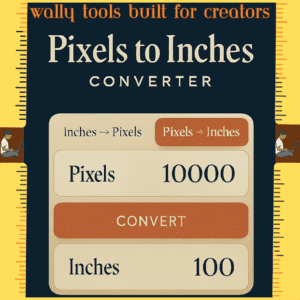
Click the swap button to switch to Pixels to Inches mode, enter your pixel value, set your resolution, and your inch measurement appears instantly. Values are displayed instantaneously in the output box as you type — making it especially useful when you want to find the right image size for different devices or confirm your actual print dimensions from a pixel-based file. This is your pixels to inches converter calculator in action — no separate tool needed, no extra steps.
| Pixel | Inch |
|---|---|
| 1122.24px | 11.69inches |
| 1584px | 16.5inches |
| 2246.34px | 23.4inches |
| 3177.6px | 33.1inches |
| 3456px | 36inches |
| 4608px | 48inches |
| 4224px | 44inches |
| 1344px | 14inches |
| 1008px | 10.5inches |
| 1920px | 20inches |
Why Getting This Right Actually Matters
Accurate conversion knowledge is genuinely fundamental to professional design work. Different PPI and DPI settings across monitors, printers, and digital platforms behave completely differently, and getting the numbers wrong means a file that looks flawless on screen can come out blurry, oversized, or cut off in print.
When preparing print designs or print media materials, understanding how print resolution and image resolution interact directly affects the final photo size and image quality — on both the digital display and the physical printed piece. Whether converting for screen display or print media, you need a solid grasp of pixels per inch and dots per inch calculations for graphic design, digital design, and web projects.
I have used this converter countless times to figure out exactly how large an image needs to be in pixels for a 6×4 inch print at 300 PPI for high-resolution output. The tool accounts for aspect ratio, screen width, image width, pixel count, and total number of pixels per inch — so your digital imaging consistently translates to the correct print size.
Pixels vs Inches — A Designer’s Practical Guide
Are Pixels and Dimensions the Same Thing?
No — and this is one of the most common points of confusion in design work. Pixels are resolution-dependent digital units. Inches are a fixed physical measurement that never changes. The same file measuring 6 inches wide could be 576 pixels at 96 PPI or 1,800 pixels at 300 DPI. Both represent identical physical dimensions — but at completely different pixel counts. This is exactly why a pixels vs inches converter belongs in every designer’s workflow.
Pixels vs Inches in Photoshop / Inches vs Pixels Photoshop
When working in Photoshop, you can set your canvas in either inches or pixels depending on your output. For print work, set your canvas in inches at 300 DPI — that is your inches to pixels 300 DPI workflow right there. For screen and web work, work in pixels at 72 or 96 PPI. Photoshop’s Image Size dialog displays both values simultaneously — use our converter to pre-calculate before you even open that dialog.
The pixels vs inches Photoshop relationship becomes second nature once you are clear on your target PPI from the start. The most common mistake is opening a canvas at screen resolution and only realising it is too small when you go to print. Knowing your exact pixel count — whether that is 6 inches in pixels at 300 DPI (1,800 px), 5 inches in pixels at 96 PPI (480 px), 7 inches in pixels at 300 DPI (2,100 px), or 4 inches in pixels at 96 PPI (384 px) — before you touch Photoshop saves you from that entirely.
Inkscape Pixels vs Inches
Inkscape lets you set document units to either pixels or inches in the Document Properties panel. Internally, it works at either 90 PPI or 96 PPI depending on your version. When exporting, the inkscape pixels vs inches relationship is controlled by the DPI setting in the export dialog. Calculate your target pixel dimensions in our tool first, then enter them directly into Inkscape’s export settings for consistent, predictable output every time.
How to Convert Inches to Pixels in Figma / Inches to Pixels Converter Figma
Figma works entirely in pixels — there is no native inches canvas mode. To convert inches to pixels in Figma, calculate your pixel dimensions at your target DPI in our converter, then enter those values directly as your frame size in Figma.
For a 300 DPI print export: set your frame dimensions using our inches to pixels converter/px converter at 300 DPI, then export at 1× scale. That gives you a print-ready pixel file from a Figma frame.
To convert pixels to inches in Figma, reverse the process: take your frame’s pixel width, enter it into our tool in Pixels to Inches mode at your target DPI, and confirm your physical output size before sending anything to print.
How to Convert Inches to Pixels in Paint / Convert Inches to Pixels in Paint
To convert inches to pixels in Paint (Microsoft Paint), go to Image → Resize, switch the unit from percentage to pixels, and enter the values you have calculated in our converter. Always check the DPI setting in the resize dialog before confirming — especially if you are preparing for print.
To convert pixels to inches in Paint 3D: open Canvas settings, switch the measurement unit to inches, and input your converted values. Set your DPI to 300 before resizing for any print-bound work. Our converter removes all guesswork — you get the exact values to enter, nothing more to calculate.
How to Convert Inches to Pixels in PowerPoint
PowerPoint measures slides in inches by default. To convert inches to pixels in PowerPoint for image export, go to File → Export → Change File Type → PNG or JPEG and set your desired output resolution before exporting.
Our converter does the pre-work for you: a 10 × 7.5 inch slide at 96 PPI = 960 × 720 pixels. For high-resolution slide exports intended for print, use 300 DPI and enter the calculated pixel dimensions in the export resolution field. This is particularly useful when repurposing presentation slides for large-format printing.
Excel Pixels to Inches Converter / Convert Inches to Pixels in Excel
Excel uses a mixed unit system for column widths and row heights that does not map directly to pixels without a calculation. To convert pixels to inches in Excel, divide your pixel value by your screen PPI — which is typically 96 on most Windows monitors.
Our tool makes this immediate: enter your Excel pixel dimension, set 96 PPI, and get your inch equivalent right away. To convert inches to pixels in Excel for print layout, enter your target inch measurement, set 96 PPI, and use the resulting pixel value when setting column widths and row heights. This is how you ensure a spreadsheet prints correctly on standard paper sizes without unexpected overflow or blank pages.
Canva Pixels to Inches Converter
Canva works entirely in pixels for all canvas dimensions. For a 5×7 inch print at 300 DPI, your Canva canvas needs to be 1,500 × 2,100 pixels. For A4 at 300 DPI, use 2,480 × 3,508 pixels. For a 4×6 photo print at 300 DPI, set your canvas to 1,200 × 1,800 pixels.
Our Canva pixels to inches converter makes every one of these calculations instant — enter your target print size in inches, set 300 DPI, and get your exact Canva canvas dimensions ready to paste. Going the other way: enter your pixel canvas dimensions, set your DPI, and confirm your physical print output size before downloading for print.
Procreate Pixels to Inches Converter
When creating a new canvas in Procreate, you can enter dimensions in inches or pixels and specify DPI directly in the canvas setup. For professional print output from Procreate, 300 DPI is the standard you want.
Our Procreate pixels to inches converter helps you verify everything before you commit: a 3,000 × 4,200 px Procreate canvas at 300 DPI prints at exactly 10 × 14 inches. Use the converter to reverse-calculate any canvas dimensions so you know exactly what physical output you will get before you spend hours drawing on the wrong size.
How to Convert Pixels to Inches in InDesign
InDesign operates naturally in inches and points — it is the most print-aligned of the major design applications. To convert pixels to inches in InDesign, calculate your physical dimensions in our tool first, then enter them directly in InDesign’s Document Setup dialog.
For images placed in an InDesign layout, check the Effective PPI shown in the Links panel — it should match your intended output DPI (300 PPI for professional print). Our converter helps you confirm that your source pixel dimensions will produce the correct physical print size before anything gets placed in a layout and sent to a printer.
Feet to Pixels Converter / Feet Inches to Pixels
Large-format work — exhibition banners, trade show displays, outdoor signage — often starts with measurements in feet. The feet to pixels conversion is a two-step process: convert feet to inches first (1 foot = 12 inches), then apply your PPI using our converter.
A 3-foot wide banner at 150 DPI: 3 ft = 36 inches × 150 = 5,400 pixels wide. A 5-foot tall backdrop at 150 DPI: 5 ft = 60 inches × 150 = 9,000 pixels tall. Our converter handles the inches-to-pixels step instantly — just do the feet-to-inches conversion first, then enter your inch value.
Conversion Reference — Inches vs Pixels Chart
Whether you are working in Photoshop, Figma, Illustrator (Inkscape), Procreate, Canva, PowerPoint, Paint, Paint 3D, or InDesign, converting between pixels and inches is a daily need. The key is always your PPI/DPI value. Use the live tool above to get exact values for any custom input — the tables below cover the most commonly referenced dimensions.
At 96 PPI — Standard Screen / Web
| Inch | PPI | Pixel |
|---|---|---|
| 1 | 96 | 96 |
| 5 | 96 | 480 |
| 10 | 96 | 960 |
At 300 DPI — Professional Print Standard
| Inch | DPI | Pixel |
|---|---|---|
| 1 | 300 | 300 |
| 5 | 300 | 1500 |
| 10 | 300 | 3000 |
Pixels to Inches — Reverse Reference at 96 PPI
For reverse lookups — 820 pixels in inches, or any other pixel-first calculation — this is your quick chart. For any value not listed, use the live tool above as your pixels to inches converter calculator.
| Pixel | PPI | Inch |
|---|---|---|
| 96 | 96 | 1 |
| 288 | 96 | 3 |
| 480 | 96 | 5 |
| 1920 | 96 | 20 |
Photo Pixel to Inch Conversion — Pixels to Inches for Printing
For pixels to inches for printing, divide your pixel dimensions by your target DPI. These are the photo sizes every designer works with most:
| Pixel | DPI | Print size |
|---|---|---|
| 1200 × 1800 | 300 | 4 × 6 Inches |
| 1500 × 2100 | 300 | 5 × 7 Inches |
| 2480 × 3508 | 300 | A4 (8.27 × 11.69 in) |
| 2400 × 3000 | 150 | 16 × 20 Inches |
Why PPI and DPI Matter — Choosing the Right Resolution
What Is a Good Pixels Per Inch Value / What Is a Good Pixel Per Inch?
The right PPI depends entirely on what you are designing for. Here is how it breaks down across real-world workflows:
72–96 PPI — Web, screen display, anything staying entirely digital
144–192 PPI — HiDPI and Retina displays, high-density screens
150 DPI — Large-format print: banners, posters, signage viewed from a distance
300 DPI — Professional print standard: business cards, brochures, magazines, photos
600+ DPI — Fine detail print work: technical drawings, fine art reproduction, detailed line art
For most designers, 96 PPI covers everything digital and 300 DPI covers everything going to print. Those two values handle around 90% of real-world conversion needs.
How to Convert PPI to DPI
In practical design work, PPI and DPI represent the same numerical value and are used interchangeably for most conversion purposes. PPI describes screen pixel density; DPI describes how many ink dots per inch a printer produces. When preparing print designs, a 300 PPI image sent to a 300 DPI printer produces accurate, true-to-scale physical dimensions. Our tool applies exactly the same conversion logic whether you call the value PPI or DPI — the formula does not change.
Common Use Cases
Graphic Design Projects — Before opening Photoshop, Figma, Illustrator, or Canva, calculate your exact pixel canvas dimensions here. Enter your width and height in inches, set your PPI, and start with a perfectly sized canvas — no resizing later, no quality loss.
Print Media — Preparing brochures, flyers, or business cards at 300 DPI means converting physical dimensions to exact pixel values. Get those numbers right before you start and your print quality output follows automatically.
Web Design and UI/UX — Match your pixel dimensions to responsive layout breakpoints and screen sizes. Convert screen pixel specs back to real-world inch measurements when bridging digital and physical delivery for the same project.
Photo Printing — Convert A4, 4×6, or 5×7 inch photo sizes to exact pixel dimensions for any print resolution. Our pixels to inches converter for printing handles every standard photo format and any custom size you can throw at it.
Social Media Graphics — Translate platform pixel specifications (Instagram, Facebook, TikTok, YouTube Shorts) back to real-world inch measurements when adapting digital graphics for print collateral.
Pixel Art — Understand the physical output dimensions of your digital canvas at different resolutions, so what you build digitally translates accurately to any print application.
Width and Height Conversion — Convert both dimensions simultaneously using the inches to pixels converter width and height inputs. Enter both measurements, set your PPI, and get both values at once without running two separate calculations. The pixels to inches converter width and height works the same way in reverse.
Combine With Other Wally Tools
This converter fits naturally into a bigger design workflow. After calculating your exact pixel dimensions here, head over to the other free Wally tools to finish the job properly.
Add sharp, styled text overlays to your graphics using the Bold Text Generator, Cursive Text Generator, Fancy Text Generator, or Glitch Text Generator — built for social media, websites, and print. Need to repurpose video content at precise dimensions? Download TikTok videos with WallyTik, then use the pixel dimensions from this converter to resize them perfectly for Instagram Reels, YouTube Shorts, or any other platform’s specific requirements.
Every Wally tool works alongside every other. No registration needed across any of them — completely free for designers, content creators, and developers, on any device.
Frequently Asked Question
What is PPI and how does it affect my design?
PPI stands for pixels per inch. It defines how many pixels are packed into every inch of your screen or printed output — and it directly controls how sharp or soft your final image looks. Get it wrong and even a beautifully designed file can come out blurry or print at the wrong physical size. This is the single most important value to confirm before you start any design project.
What is the difference between PPI and DPI?
PPI (pixels per inch) describes how many pixels are packed into one inch of your screen or monitor. DPI (dots per inch) describes how many ink dots per inch your printer produces. For most design workflows and for all conversions in this tool, they represent the same number and are used interchangeably. When preparing print designs and print media materials, matching your image PPI to your printer’s DPI is what produces accurate physical output.
What PPI should I use for web and screen design?
For web design and general display on a computer monitor, 72 or 96 PPI is standard — 96 PPI being the accurate modern default for Windows and most browsers. For Retina and HiDPI displays, 144–192 PPI is appropriate to maintain image clarity at high pixel densities.
What DPI do I need for high-quality print?
300 DPI is the professional print standard for sharp, clear output — business cards, brochures, flyers, magazines, and photo prints. For large-format printing like banners or posters viewed from a distance, 150 DPI delivers excellent results without creating unnecessarily large files.
Are pixels and dimensions the same thing?
No. Dimensions describe physical or proportional size — for example, 6 × 4 inches. Pixels are the digital unit count at a specific resolution. A 6 × 4 inch file equals 576 × 384 pixels at 96 PPI, or 1,800 × 1,200 pixels at 300 DPI. Same physical dimensions, completely different pixel counts depending on resolution.
Can you convert pixels to inches using this tool?
Yes, absolutely — that is exactly what the swap function is for. Use the swap button to switch to Pixels to Inches mode, enter your pixel value, select or type your PPI/DPI, and the inch measurement appears instantly in the output box. It works as a full pixels to inches converter online with no extra steps and no registration required.
How does the live result feature work?
The moment you type any value into the input field, the output box updates in real time — no button press, no page reload. The live formula display also updates simultaneously so you can see exactly how the result was calculated on every single keystroke.
How do I copy my result?
Click anywhere on the result output bar. The value copies to your clipboard instantly with a brief visual confirmation — no text selection, no Ctrl+C. Paste straight into any tool you are working on.
How do I convert inches to pixels in Figma?
Figma works natively in pixels. Use our converter to calculate pixel dimensions at your target DPI — for example, 6 inches at 300 DPI = 1,800 px — then enter those values directly as your Figma frame size. For screen design use 96 PPI; for print exports from Figma use 300 DPI. To convert pixels to inches in Figma, enter your frame’s pixel width into our tool in Pixels to Inches mode and divide by your target DPI to confirm physical print output size.
How do I convert inches to pixels in Paint or Paint 3D?
In Paint, go to Image → Resize, switch from percentage to pixels, and enter the values from our converter. In Paint 3D, open Canvas settings, switch the unit to pixels, and input your converted values. Always confirm your DPI setting before resizing anything intended for print.
How do I convert pixels to inches in InDesign?
Calculate your physical dimensions in our tool, then enter them in InDesign’s Document Setup. For placed images, check the Effective PPI shown in the Links panel — it should read 300 PPI for professional print output. Our converter confirms your pixel source dimensions will produce the right physical size before you place them in any InDesign layout.
How do I convert inches to pixels in PowerPoint?
Use our converter to calculate pixel values, then enter them in PowerPoint under File → Export when setting your export resolution. For print-quality slide exports, target 300 DPI in the export resolution field.
How do I use this as a converter of pixels into inches calculator?
It works as a full convert pixels into inches calculator right out of the box. Switch to Pixels to Inches mode using the swap button, enter your pixel value, set your PPI or DPI, and your inch result appears instantly with the live formula shown. No extra tools, no separate calculator needed.
Can I use this as a pixels to inches converter calculator?
Yes — that is exactly how it is designed to work. Enter any pixel value, select your PPI or DPI, and the inch result appears instantly. The live formula shows the full calculation as it happens. It functions as a complete pixels to inches converter calculator with real-time output and one-click copy.
Can I convert feet to pixels using this tool?
Yes. Convert your feet to inches first (1 foot = 12 inches), then enter the inch value into our converter. For example: 3 feet at 150 DPI = 36 inches × 150 = 5,400 pixels wide. It works as a feet inches to pixels or px converter with that one simple extra step.
Does the reference table change when I swap directions?
Yes. When you switch from Inches to Pixels to Pixels to Inches mode using the swap button, the reference table automatically updates to show conversion data for your selected direction and current PPI/DPI value. Change your resolution and all table values update live to match.
Does this tool work for A4 paper and standard photo sizes?
Absolutely. Enter any inch measurement — A4 (8.27 × 11.69 in), 4×6, 5×7, or any custom size — set your DPI, and get exact pixel dimensions instantly. Every standard print and photo format is supported alongside any custom dimensions your project requires.
Is this a free pixels to inches converter online?
Completely free. No registration, no account, no usage limits. Use it as your everyday pixels to inches converter online for every project, every day, as many times as you need.
Quick conversion. Reliable results online.
Quick conversion. Reliable results online. Tremendous!
Sikandar Rana
Rated 5 out of 5 stars

Required

Cursive Text Generator (𝖈𝖔𝖕𝖞 & 𝖕𝖆𝖘𝖙𝖊)
March 12, 2026

GLITCH TEXT GENERATOR
March 4, 2026

WallyTik-TikTok Video Downloader without Watermark
February 8, 2026

FANCY TEXT GENERATOR (𝖈𝖔𝖕𝖞 𝖆𝖓𝖉 𝖕𝖆𝖘𝖙𝖊)
January 31, 2026
Inches to Pixels Converter
November 5, 2025
