
Inches to Pixels: The Free Tool Designers Need
Every designer hits this wall at some point. Your client sends over a brief with dimensions in inches. Your design software wants pixels. You know it is not a simple multiplication — resolution is involved somewhere — but unless you deal with this daily, you pause and try to remember the formula.
That pause costs you time. The Wally Inches to Pixels Converter at Wally Editing Service was built for exactly that moment.
Why the Same Inch Value Gives You Different Pixel Counts
This is the part that catches people off guard, and it is genuinely worth understanding once properly.
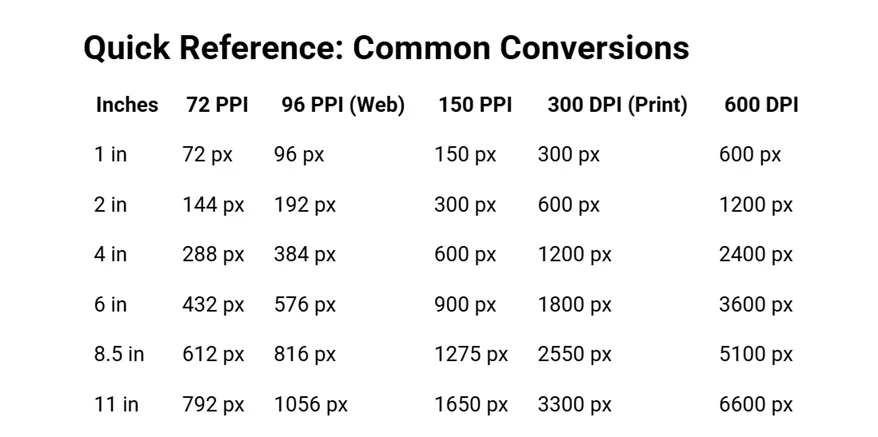
An inch is a fixed physical unit. It does not change. But a pixel depends entirely on resolution — specifically your PPI (pixels per inch) or DPI (dots per inch). A 6-inch canvas at 96 PPI gives you 576 pixels. That exact same 6-inch canvas at 300 DPI becomes 1,800 pixels. Same physical size, nearly three times the pixel count. Get this wrong and you end up with blurry prints, oversized files, or a design that looks nothing like what you planned.
This is why any serious inches to pixels converter has to put resolution control in your hands — not assume a default and hide it from you.
What This Tool Does Differently
The converter runs live. The moment you type a value, your result appears — no Convert button, no page reload. Type 3 inches at 96 PPI and 288px shows up before you have finished the thought. Change the PPI and everything recalculates in the same breath.
It also works both ways. Inches to Pixels when you have physical specs and need digital values. Pixels to Inches when you have a pixel dimension and need to confirm the print size. One swap button at the top flips the whole interface — input, formula, and reference table all update together.
Five Presets and a Custom Input
Most basic converters give you one resolution value and leave you to guess the rest. This one comes with five presets built in:
- 72 PPI — The legacy screen standard. Still relevant in certain web contexts.
- 96 PPI — The modern web default. Most browsers and operating systems run at this. If you are designing for screens, start here.
- 150 PPI — Mid-range print. Good for large-format materials like banners and posters viewed from a distance.
- 300 DPI — The professional print standard. Business cards, brochures, magazines — anything going to a commercial printer starts at 300.
- 600 DPI — High-resolution output for fine art prints, detailed technical work, or anything examined up close.
Need something outside those five? There is a custom PPI field right alongside the presets. Type any value and the converter adjusts instantly.
The Formula Shows Right Below Your Result
After every conversion, the tool displays the exact calculation it used. Convert 3 inches at 96 PPI and you see: 3 × 96 PPI = 288.00 px. It is not just handing you a number — it is showing you the working. Useful for documentation, useful for client communication, and genuinely useful for building your own instincts around how resolution and pixel counts relate over time.
One-Click Copy and a Live Reference Table
Once your result appears, one click on the output bar copies it to your clipboard. No selecting text. No keyboard shortcut. Paste straight into Photoshop, Figma, Illustrator, InDesign, Canva, your CSS file, or wherever your project lives.
The built-in Quick Reference Table handles the dimensions you reach for repeatedly. Show it or hide it with a single button. It responds to your selected mode and resolution setting — switch from Inches to Pixels to Pixels to Inches and the table flips its data to match. Change your PPI and every value in the table updates live. It is a working chart, not a static one you need to cross-reference separately.
Who Uses It and How
- Web designers and front-end developers translating physical specs into pixel values for layouts, images, and CSS at the 96 PPI web standard.
- Graphic designers preparing print files at 300 DPI who need exact canvas dimensions before they open their design application — because upscaling a canvas halfway through never ends well.
- Photographers confirming their files have enough pixels for a quality print. A 5×7 inch print at 300 DPI needs 1,500 × 2,100 pixels. The converter confirms that in seconds.
- UI/UX designers working across multiple device screen densities using the custom PPI field to handle any spec without needing a separate tool for each device.
- Social media managers and content creators on Instagram, Facebook, YouTube, LinkedIn, and TikTok who constantly move between pixel specs and physical print dimensions for banners, covers, and thumbnails.
Part of the Wally Tool Kit
The Inches to Pixels Converter sits inside a broader collection of free tools at Wally Editing Service — all built around saving you time on the technical side so you can stay focused on the actual creative work.
The same toolkit includes the Fancy Text Generator, TikTok Downloader, DNA to mRNA Converter, and a growing range of text and media tools — all free, all fast, all in one place.
Try the Inches to Pixels Converter at wallyeditingservice.com — no sign-up, no download, just open and use.
Wally Editing Service covers Document Editing, SEO & Article Writing, Graphic Designing, Web Design & Maintenance, and free Service Tools — all under one roof. You think the concept, we lead you to completion.
Frequently Asked Questions
How do I convert inches to pixels?
Multiply your inch value by the PPI of your project. That is the whole formula — Pixels = Inches × PPI. The part people get wrong is not the math, it is using the wrong PPI. A 4-inch canvas at 96 PPI is 384 pixels. That same 4 inches at 300 DPI is 1,200 pixels. Same physical size, completely different pixel count. Get the resolution right first, then do the multiplication.
What PPI should I use for a website or app?
96 PPI. That is the standard for modern browsers and operating systems. You will sometimes see 72 PPI recommended — that was the web standard for older monitors and it still shows up in legacy documentation — but if you are designing for screens today, start at 96.
What DPI do I need for print?
300 DPI for anything going to a commercial printer — business cards, brochures, magazines, packaging. Below 300 and you will usually see it in the final print quality. For large-format work like banners and posters viewed from a distance, 150 DPI is generally enough. Fine art prints or technical drawings examined up close? Go to 600.
Is PPI the same as DPI?
Not technically — PPI is a screen measurement, DPI is a print measurement. But for the purpose of converting between inches and pixels, they work the same way in the formula. When a print shop says your file needs to be 300 DPI and your design software asks for PPI, they are asking for the same number. Use 300 in either case.
Can I go the other way — pixels to inches?
Yes. There is a swap button at the top of the converter. Hit it and the whole tool flips — input, formula, and the reference table all switch to Pixels to Inches. Useful when you have a pixel dimension from a spec sheet and need to know how it translates to a physical print size.
How many pixels do I need for a quality photo print?
Work backwards from 300 DPI. A 5×7 inch print needs a file that is at least 1,500 × 2,100 pixels. A 4×6 print needs 1,200 × 1,800. If your photo file is smaller than that, you are going to see it in the output — softer edges, less detail. Enter your target print size in the converter at 300 DPI and it tells you the exact pixel minimum before you even open Photoshop or Lightroom.
My device has an unusual screen density. Can I still use this tool?
Yes. Alongside the five standard presets there is a custom PPI field — type any value and the converter recalculates on the spot. Useful for high-density displays, device-specific UI specs, or any resolution that does not fall neatly into the standard options.
Why does the converter show the formula after each calculation?
Two reasons. First, it means you are not just trusting a black box — you can see the working and catch a mistake immediately if you entered the wrong PPI. Second, it is useful for documentation. When a client asks why the canvas is a specific size, you have the exact calculation right there to share or copy into a file note.
Does it work with Photoshop, Figma, Illustrator, and Canva?
The converter itself does not connect to any design tool — it is a standalone calculator. But there is a one-click copy button on the result. You get your pixel value, copy it, and paste it straight into whatever you are working in. No selecting, no retyping.
Is this tool free? Do I need to create an account?
Free, no account, no download. Open it, use it, close it. That is the whole thing.
